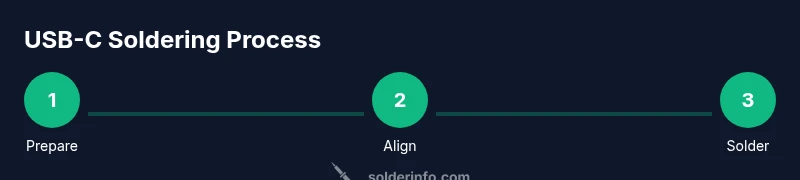
Solder USB-C Instead of Micro USB: A Step-by-Step Guide
Learn how to solder USB-C connectors in place of Micro USB safely and effectively. This practical guide covers tools, step-by-step instructions, tips, and common pitfalls for electronics hobbyists and professionals.


You can replace a micro USB port with a USB-C connector by mapping the four essential signals (Vbus, GND, D+/D-, and shield) to the USB-C pins, using proper ESD protection, and selecting a compatible footprint. This guide explains when to do it, what tools you'll need, and the safety steps.
Why solder usb c instead of micro usb
Replacing micro USB with USB-C on a project isn’t just about future-proofing—it’s about reliability, power, and durability. For hobbyists and professionals, the action to take is to consider solder usb c instead of micro usb as an upgrade path. According to SolderInfo, USB-C offers reversible orientation, higher current capability, and PD negotiation options that micro USB cannot. This section explains when a swap makes sense, and how to approach it with a standards-based, careful soldering process. You’ll learn pin mapping basics, how to avoid common pitfalls, and how to test thoroughly to ensure a robust connection. The goal is a mechanically stable joint that survives repeated plugging and unplugging in real-world use.
Safety considerations and standards for USB-C soldering
USB-C interconnects carry higher power and faster data paths, so soldering them safely requires attention to standards and best practices. Always power down devices, discharge any residual energy, and work on an ESD-protected mat with a grounded wrist strap. Use lead-free solder and flux compatible with fine-pitch connectors. The USB-C specification defines VBUS, GND, D+/D-, CC pins, and shield; depending on your board, you may also need to manage CC resistors for charging negotiation. Skipping proper protection or mounting can damage the host controller, the connector, or the board. The SolderInfo team emphasizes verifying voltage levels and equipment calibration before starting.
Pin mapping and footprint selection for USB-C
Before you solder, confirm the footprint type (through-hole vs. surface-mount) and the connector variant (receptacle vs. plug). USB-C pinout is more complex than micro USB: VBUS, GND, D+/D-, and CC pins, plus shield. Use a footprint library that includes CC pins and mechanical tolerances; if the board lacks a compact USB-C footprint, consider a breakout adapter that preserves signal integrity. If you plan to rely on PD, include proper CC configuration; otherwise, you may only need VBUS, GND, and D+/D- with appropriate protection. Confirm the footprint matches the board’s copper land pattern and recommended soldering approach.
Workspace preparation and essential tools
A clean, static-safe workspace reduces mishap risk. Gather: a fine-tipped soldering iron (0.4–0.8 mm), a temperature-controlled station, flux pen, rosin-core lead-free solder, ESD mat, grounding strap, magnification aid, and fine-tipped tweezers. Have a USB-C footprint or breakout board ready that matches your device’s mechanical constraints. Clean pads with isopropyl alcohol before tinning, and keep spare connectors and a desoldering wick nearby in case you need to fix mistakes. The goal is precise joints with minimal heat exposure.
Desoldering and removing the micro USB port
Desolder the existing micro USB port with a temperature-controlled iron and flux. Apply flux around the pads, heat each leg briefly, and lift the port with precision tweezers as the solder liquefies. If the board is dense, a small amount of hot air can help free the connector without damaging adjacent components. Inspect pads for lifted copper; if needed, re-tin and repair with copper wick. Remove all residual solder to ensure a clean surface for the USB-C footprint.
Attaching the USB-C connector: alignment and reflow tips
Position the USB-C footprint and gently hold alignment. Tack a couple of corner pins to secure the connector, then solder them first to prevent shifting. Solder VBUS and GND pins to establish power and ground, then complete D+/D- and shield. If CC resistors are required by your design, place them per the footprint. Use generous but controlled flux to improve wetting and reduce cold joints. For heat-sensitive boards, consider preheating slightly and using a heat sink on the connector to protect nearby parts.
Testing and verification after soldering
Begin with a careful visual inspection for bridges and cold joints. Use a multimeter to confirm VBUS continuity to the power rail and GND integrity to the ground plane. With a powered USB-C host, test charging and data paths using a known-good cable. If the device fails to enumerate or charge, recheck pin mapping and CC configuration, and consider a controlled reflow of any suspicious joints. Document findings to refine future techniques.
Common mistakes and troubleshooting
Common mistakes include overheating and lifting pads, misalignment of the footprint, unlabeled CC pins, and neglecting strain relief. Troubleshooting steps include cleaning flux, rechecking the footprint, and testing with a microscope. If data lines are swapped or misrouted, signals degrade and require rework. Always verify power specs and ensure proper protection; attempt high-current charging only with proper negotiation and documentation.
Practical takeaways and maintenance tips
After soldering usb c instead of micro usb, store tools properly and keep spare USB-C breakout boards for future repairs. Periodically inspect joints for hairline cracks or corrosion, especially on portable projects. Add strain relief (clip or epoxy) to reduce cable torque on the connector. With careful planning and solid technique, you’ll improve reliability and reduce future repairs.
Tools & Materials
- Fine-tipped soldering iron (0.4–0.8 mm tip)(Temperature-controlled preferred; use 350–380°C for lead-free solder)
- Lead-free solder (ro sin-core recommended)(0.3–0.6 mm diameter; flux-core preferred for hand-solder)
- Flux pen or rosin flux(No-clean flux is ideal to avoid post-cleaning)
- USB-C connector footprint or breakout board(Match footprint to your board's copper land pattern)
- ESD mat and grounding strap(Protect the board and components from static discharge)
- Magnification tool (loupe or microscope)(Helpful for inspecting fine-pitch pads)
- Fine-tipped tweezers(Used to place and hold the connector during soldering)
- Desoldering wick (solder braid)(For removing old solder from pads)
- Multimeter(Test continuity and verify power/pin mapping)
Steps
Estimated time: 2-3 hours
- 1
Power down and prep workspace
Power off the device, unplug any power sources, and discharge capacitors if safe. Set up an ESD-safe workstation with mat and strap. This base step prevents damage from static and unexpected current.
Tip: Keep a small tray for screws and parts; keep the area uncluttered to avoid accidental shorts. - 2
Identify footprint and pinout
Confirm whether you’ll use a through-hole or surface-mount USB-C connector, and verify the board’s copper land pattern matches the footprint. Review VBUS, GND, D+/D-, CC pins, and shield locations before proceeding.
Tip: Double-check the footprint against the board’s silkscreen or schematic to avoid misalignment. - 3
Desolder the micro USB port
Apply flux around the micro USB pads, heat each leg, and gently lift the port with precision tweezers as solder liquefies. If needed, use a small amount of hot air to free stubborn joints without lifting traces.
Tip: Keep heat application brief per pad to prevent pad lift; work steadily rather than rushing. - 4
Align USB-C footprint
Position the USB-C connector so it sits flush with the PCB surface and aligns with the pads. Use a light tack on a couple of pins to hold position before full soldering.
Tip: Consider temporarily taping the connector or using a tiny dab of flux to prevent shifting. - 5
Solder anchor pins first
Solder the four corner pins to establish a stable anchor. Then proceed to power and ground pins to form the backbone of the connector’s mechanical and electrical integrity.
Tip: Solder gradient should be from anchored corners outward to minimize wobble. - 6
Complete VBUS, GND, and data lines
Tin the pads and apply flux; solder VBUS and GND to the main rails first, then D+/D- with careful alignment. If CC resistors are required by your design, install them per the footprint.
Tip: Work with magnification for data lines; use minimal solder to avoid bridging. - 7
Check alignment and reflow if needed
Inspect for bridges and misaligned joints under magnification. If any joint looks suspect, rework with a quick reflow using steady heat and fresh flux.
Tip: Keep heat cycles short to protect nearby components. - 8
Test power and signals
Power up in a controlled manner and verify VBUS continuity and data paths with a known-good USB-C cable. Use a multimeter and a simple USB device to ensure proper operation.
Tip: Document any anomalies for later debugging. - 9
Add strain relief
Apply mechanical strain relief using epoxy or a small clip to protect the connector from cable movement.
Tip: Wait for the adhesive to cure fully before reuse.
Quick Answers
Is it safe to solder USB-C directly to a board that originally used micro USB?
Directly replacing micro USB with USB-C can work, but it requires careful pin mapping, ESD protection, and consideration of PD/CC requirements. Improper wiring or overheating can damage the board or connector. Use a footprint that matches the USB-C standard and test thoroughly.
Directly replacing can work, but be careful with pin mapping and protection. Test thoroughly to avoid damaging the board.
Do I always need CC resistors when using USB-C?
Not every USB-C swap requires CC resistors; it depends on device role and whether PD is used. If you are unsure, start with a breakout that includes CC handling and verify how the host negotiates power.
CC resistors depend on PD use; use a breakout to handle them if you’re unsure.
What tools are essential for this soldering task?
A fine-tipped temperature-controlled iron, lead-free solder, flux, ESD protection, a USB-C footprint, tweezers, a multimeter, and magnification help ensure clean, reliable joints.
You’ll need a fine iron, flux, solder, ESD protection, and a multimeter.
Can USB-C replace micro USB for charging in all devices?
USB-C supports higher current and PD charging, but compatibility depends on your device’s PD handling and CC configuration. Check the device’s charging specifications before swapping.
USB-C can charge more, but make sure the device supports it and CC is set correctly.
What should I do if I see a cold joint after testing?
Power down, reapply flux, and reflow the suspect joint carefully. Inspect under magnification and ensure no bridging; retest after the joint reflows.
If a joint looks dull, rework it with flux and heat until it shines.
Is a USB-C breakout board a good alternative?
Yes, a breakout can simplify alignment and CC handling, especially on small boards. It can reduce risk and improve reliability for beginners.
A USB-C breakout can simplify the process and reduce risk.
Watch Video
Top Takeaways
- Verify footprint and pinout before soldering
- Use flux and fine-tipped tools for precision
- Anchor VBUS/GND first, then data lines
- Test thoroughly with powered-up checks
- Secure connector with strain relief after soldering